
Introduction.
For many people, a website is not something they create once and then leave alone. It is a working part of daily life. A business may need to add a new training page. A community organisation may want to publish an announcement. A broadcaster may need to update a presenter profile. A writer may have a blog post ready to share. An existing page may contain one sentence which needs correcting, a date which has changed, or an image which ought to be described more clearly.
WordPress makes all of this possible, and it powers an enormous variety of websites. But the practical experience of maintaining a site can still involve more effort than the writing itself. You may need to move through a browser-based dashboard, locate the correct page, enter an editing environment, distinguish the content from the surrounding controls, and then work out how the changes will interact with the site which is already in place.
We believe there is another way to approach much of that work.
WordPress integration is coming to Leasey Word.
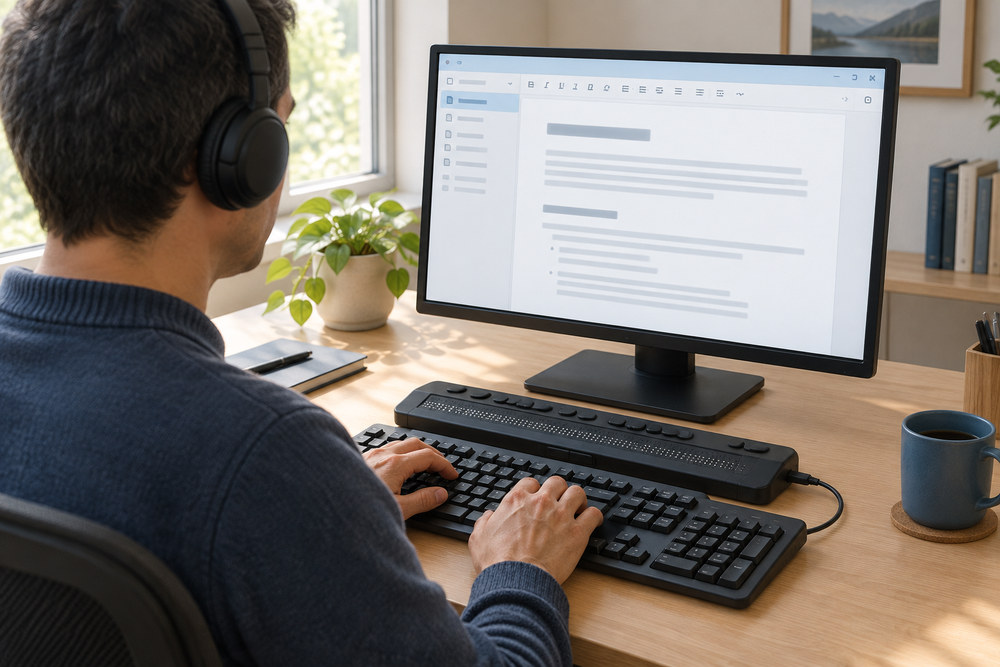
This will allow people using JAWS and Leasey to create, open, edit and publish ordinary WordPress pages and blog posts from the familiar Leasey Word environment. It brings website content into the same editor in which people already write documents, search for text, dictate, check spelling, work with Markdown and HTML, use quick navigation, create bookmarks and call upon the extensive range of Leasey Word tools.
The result is not a new website builder and it is not a replacement for WordPress. It is a focused, accessible route into the part of WordPress which many people need most often: the content.
This Is the First Phase.
The WordPress integration is being introduced in several phases. What we are describing here is the first of those which will be available to Leasey users by the end of this year. Everything documented here is fully working now.
This initial phase is intended for people who already have a self-hosted WordPress website. In everyday language, this often means that the website is hosted under your own domain name and that you, your organisation or your website administrator can provide an appropriate WordPress account. The site must permit the secure WordPress connection used by Leasey Word.
This feature is for someone who wants to become more efficient when working with an established site. You may already have pages, posts, categories, tags, images, colours, navigation and a theme you like. You may have spent years building the site or may work with someone else who originally designed it. Leasey Word gives you a more direct way to manage much of its written and image content.
It is not currently intended for someone who has no website at all and needs help choosing a hosting company, registering a domain, selecting a theme, deciding upon a visual identity or constructing the complete site from the beginning. Those are different tasks involving wider design and administrative decisions.
It is also important to be clear about what will follow later. WordPress includes many areas beyond pages and posts, including comments from readers. Comment support and further development are planned as the integration moves forward during 2027. The first phase concentrates on giving people a strong, practical and dependable foundation for writing, editing, publishing and reviewing pages and posts.
Two Halves, With the User in Control.
The easiest way to understand the first phase is to think of it as having two halves.
The first half does not rely upon ChatGPT. It covers the essential WordPress tasks: connecting to an existing website, creating a page or post, opening existing content, writing and editing, choosing categories and tags, working with drafts, publishing or updating, managing images, recovering previous text and moving an item to the WordPress Trash.
If all you want to do is write text and place it on your website, the process should be very straightforward. You do not need AI to create a page. You do not need AI to open a blog post, find a sentence and correct it. You do not need AI to choose a title, save a draft or publish the finished work. These ordinary actions are built into the WordPress menu and use accessible dialogs and the standard Leasey Word editing environment.
The second half adds optional ChatGPT guidance. This can help you ask questions about a page, prepare carefully reviewed text changes, suggest or describe images, draft alternative text and produce reports about how a public page appears on desktop and phone-sized screens.
The word optional matters. The AI tools do not sit between you and every WordPress action. They are available when their particular kind of assistance would be useful. You decide when information should be sent for AI analysis, you review what comes back, and publication remains a separate action.
This distinction should make the feature approachable to a wide range of people. One person may simply want to post a weekly news item. Another may want help assessing image sizes or checking whether an information page explains its purpose clearly. Both can work in Leasey Word without being forced into the same process.
Your Existing Theme Remains Your Theme.
One of the most important facts about this integration is also one of the simplest.
You do not need a special WordPress theme.
Leasey Word is not asking you to abandon the appearance of your website, install a Hartgen Consultancy template or rebuild pages inside a new visual system. Your site continues to use its existing theme. That theme still determines the overall appearance, including such things as colours, fonts, navigation, page width, headings, spacing and the way featured images are presented.
This matters because a website’s theme is often a very personal or carefully considered choice. A company may use particular colours associated with its identity. An organisation may have selected a theme because it provides an accessible and uncluttered layout. A blogger may simply like the way their articles look. A website designer may already have adjusted the theme to suit the audience.
Leasey Word does not disturb those choices.
It works with the ordinary pages and posts already used by the website. When you update the words in a page, WordPress continues to display them through the same theme. When you insert an image, the theme continues to influence how that image fits into the page. When you publish a post, it joins the site’s existing blog or news structure.
There is a useful consequence here. The integration is not limited to one approved visual style. It can assist people who maintain very different WordPress sites because it concentrates on accessible control of content rather than imposing a replacement design.
There are sensible boundaries. A complex page built with a specialised visual page builder may depend upon that builder’s own structures and controls. Themes, navigation menus, plugins, user accounts and other site-wide administration remain within WordPress. Publishing a new page does not necessarily add it to a navigation menu, since that depends upon the site’s existing settings. But for ordinary WordPress pages and posts, Leasey Word can provide a remarkably direct working environment.
The Full Power of Leasey Word Is Still There.
This may be the feature’s greatest practical advantage.
When you open a WordPress page or post, you are not placed in a small special-purpose text box with only a few editing keys. You are working with a local copy in Leasey Word. That means the wider Leasey Word environment remains available.
You can use Find to locate a sentence in a long page. You can use Find and Replace when a term has changed throughout an article. Quick Navigation can help you move through structured content. You can select, copy, cut, paste and change case. You can use the traditional spell checker or ChatGPT Text Tools. You can dictate new text. You can use AutoCorrect. You can add bookmarks or Leasey Document Notes while working. You can call upon the Markdown and HTML writing tools. You can move between several open documents, compare material and return to the exact area you need.
In other words, WordPress has come to Leasey Word; Leasey Word has not been reduced to a WordPress upload form.
Imagine opening a long training page and discovering that one product name has changed. Control+F finds the first occurrence. Find and Replace can deal with repeated wording. Quick Navigation can move among headings. The spelling and grammar tools can review a particular passage. Dictation can add a new section. When the text is ready, Publish or Update sends the revision back to the same WordPress item.
Or imagine drafting a blog post from the beginning. You can write it with the keyboard, dictate it, paste in prepared notes, expand the notes with the writing tools, insert headings and links using Markdown, check the result and save a local working copy before the post goes anywhere near the public site.
These are not isolated WordPress tricks. They are familiar Leasey Word tasks applied to website content.
The WordPress menu opens with Alt+W. Commands can also be found through Leasey Command Centre by pressing Control+Shift+C and searching for WordPress or part of an action name. This means that someone can browse the available commands through a traditional menu, search for the required action, or learn the more direct shortcut for a task they perform regularly. The dialogs use familiar controls such as Edit Fields, lists, Combo Boxes, Check Boxes and Buttons, with context-sensitive help available where it is needed.
Pages, Posts and the Words Which Matter.
WordPress distinguishes between Pages and Posts.
A Page usually contains information which remains part of the website for some time. Examples might include About Us, Contact, Training Services, Product Information or Meet the Team.
A Post is usually a dated article in a blog or news area. It might announce a new product, describe an event, provide a company update or share a weekly article. Posts can be organised with categories and tags so visitors can discover related material.
Leasey Word keeps this distinction clear without making the writing process unnecessarily different. You choose New Page or New Post, supply a title, optionally choose the short address component known as the slug, and select Markdown or HTML as the writing format. For a post, you can also choose from the site’s existing categories and tags.
The title is kept separately from the body. This is useful because many themes already display the WordPress title prominently. You do not normally need to repeat it as a first-level heading inside the article. The body can begin with an introduction and then use appropriately structured headings for its sections.
Creating the document does not publish it. You remain free to write, edit, add images and review properties before anything is sent to the website.
Markdown or HTML: The Choice Is Yours.
New WordPress content can be written in Markdown or HTML.
Markdown is often an excellent choice for someone who wants structure without spending time typing many HTML tags. A pair of number signs followed by a space can introduce a second-level heading. A dash followed by a space creates a bullet. Links, emphasis, lists, tables and images can all be represented with readable text characters. When the document is saved or published, Leasey Word converts the Markdown into the HTML WordPress requires.
HTML remains available for people who prefer it or need more exact control. You write the article content rather than a complete web document. There is no need to include html, head or body tags because the WordPress theme supplies the surrounding page.
Leasey Word already contains tools for both formats. It can insert headings, paragraphs, links, email links, lists, tables and images. Markdown can be previewed as HTML. Existing WordPress documents generally open as HTML source, including the structural comments WordPress may place around blocks. These can be preserved while the required wording is changed.
The format is fixed when a new WordPress document is created. That protection prevents Leasey Word from unexpectedly interpreting existing content as another format later.
Connecting Without Programming.
The initial connection uses the standard facilities provided by WordPress: its REST API and an application password.
Those terms may sound technical, but the user is not expected to write API commands or program anything. The REST API is simply the connection through which Leasey Word reads and saves content. An application password is a separate password which WordPress generates for an application such as Leasey Word. It is not the same as the password used to sign into the website in a browser. The dedicated lengthy chapter in the Leasey User Guide describes how to link Leasey Word to your WordPress profile.
The site needs to use HTTPS and permit this form of connection. Some hosting arrangements or security plugins may restrict it, in which case the website administrator may need to make the appropriate access available.
The WordPress account also needs permission to perform the requested tasks. An Editor can normally work with pages and posts, while an Author usually manages their own posts but not pages. A site administrator may have changed those roles. Uploading media or changing a shared site logo may require additional permission.
Once the website address, WordPress username and application password have been supplied through the accessible Connection dialog, the connection can be saved. The password is protected for the Windows user account. From that point, Leasey Word can use the selected website without asking for the credentials during every ordinary task.
More Than One Website.
Some people maintain several WordPress sites. A consultant may have a business site and a personal blog. A volunteer may update a community organisation’s pages while also writing for another website. Leasey Word can save more than one connection and switch between them.
The selected connection determines the website used for new documents and for browsing pages or posts. However, an already open document remains attached to the website from which it came. Changing the selected site does not accidentally transfer that document somewhere else.
This makes it possible to open material from two sites during the same Leasey Word session. Document Properties identifies the website associated with the current document, and publication or Trash confirmations name the destination. These details are small but essential when the same person is responsible for several websites.
Opening What Is Already There.
The first phase is not only about creating new material. Existing pages and posts can be opened for editing.
Open Page or Post provides controls for choosing Pages or Posts, selecting a status and searching titles or content. You can browse published items, drafts, pending material, private or scheduled content, and items in the WordPress Trash where permissions allow. Results identify the title, status and modification information.
Selecting an item and opening it places its editable content into Leasey Word. There is no additional Edit Button hidden elsewhere. You can immediately use familiar reading and editing commands. If the page is long, Find can take you to the passage which needs attention.
There is also Open by Web Address. If someone sends you a link to the page which needs changing, copy or type that address and Leasey Word attempts to match it to one of the saved website connections. It can even locate an item from a different saved site without requiring you to change the selected connection first.
If the same document is already open, Leasey Word switches to it and preserves the work in progress rather than opening another copy over it.
Leasey Word also protects against a serious problem which can occur whenever more than one person or application edits a website. If the website copy has changed since you opened it, Leasey Word prevents the older local copy from silently overwriting the newer work. You can open the current website version, compare it with your local draft and decide what should be retained.
Local Work, WordPress Drafts and Public Pages.
Website editing becomes much less alarming when three actions are kept separate.
- Saving locally keeps a working copy on the computer.
- Save Draft to WordPress sends an unpublished draft to the website.
- Publish or Update publishes a new item or updates an existing one.
These are deliberately different actions. Control+S is not a WordPress publishing command. Closing a WordPress document does not suddenly make unfinished writing public. Leasey Word keeps local drafts as you work, and Open Local Draft lets you return to them later.
When an unpublished copy should also exist on the website, Save Draft to WordPress sends it there without publishing it. It can later be found by opening WordPress drafts. When everything is ready, Publish or Update asks for confirmation and identifies both the document and destination website.
After a successful publication or update, WordPress returns the page address. It can be copied or opened in the default browser. The address remains available later through the WordPress menu.
Private or scheduled items retain their existing status when updated. Selecting a new publication schedule remains a WordPress dashboard task in this first phase. Similarly, a draft address may require a WordPress login and should not be mistaken for a publicly accessible page.
This separation between local editing, website drafts and publication is reassuring. It allows someone to become comfortable with the workflow without fearing that every keystroke is instantly changing the public site.
Categories and Tags Without the Dashboard.
Posts can use the categories and tags which already exist on the website.
A category is a broad grouping such as News, Training or Product Updates. A tag may identify a more specific subject such as JAWS, Braille or WordPress.
The accessible selection dialogs allow categories and tags to be searched, browsed, selected or cleared. Each result announces whether it is selected. More than one item can be chosen, and a summary of current selections is available before returning to Document Properties.
Previous Versions: A Safety Net You Can Understand.
Leasey Word keeps dated local versions of WordPress documents at useful moments. Copies are retained when website content is opened and when it is saved. Before an update, the website text which is about to be replaced is preserved. Applying an AI text proposal also keeps the preceding working text, and restoring an earlier version saves the text being replaced.
Previous Versions presents these copies newest first. Each entry identifies its date, time, title and reason, such as Website before update. The complete text and relevant properties can be read with ordinary JAWS commands before deciding whether to restore anything.
This is not a hidden automatic restoration which immediately changes the website. Restoring places the selected version into the Leasey Word editor. You can review it, copy only the paragraph you wanted, change it further or send it back to WordPress when ready. Restoration itself does not publish.
It is also separate from WordPress’s complete revision history. Leasey Word can only offer versions it has retained. But within that scope, it provides a very approachable answer to a familiar worry: what if yesterday’s wording was better?
Moving Content to Trash, Not Oblivion.
An existing page or post can be moved to the WordPress Trash either from the open document or from the search results. The confirmation identifies the title and website before the action proceeds.
Leasey Word does not substitute permanent deletion. A local copy of open working text is retained, and trashed items can be found by selecting Trash as the status when browsing.
Again, the emphasis is on a recoverable and understandable process rather than an abrupt destructive command.
The Optional ChatGPT Half.
Everything described so far demonstrates why the WordPress integration can be valuable without ChatGPT. A page can be created, written, saved, opened, edited, categorised, published and recovered using ordinary Leasey Word and WordPress functions.
The AI half begins when the user actively asks for guidance.
There are two main ways to work with text. Ask a question about the text provides information without changing the document. Write or Change Text prepares a proposed revision which must be reviewed before it is applied.
Suppose you open a training page and want to know whether it clearly explains how to book a session. Select the relevant passage, or leave nothing selected to consider the complete page, then ask that question. The answer appears in a read-only field. It is not inserted into the article.
Or suppose a radio station team page needs a new presenter. Write or Change Text allows you to describe the required addition in ordinary language. You can state the presenter’s name, programme title, factual details and intended position, and ask for the new section to match the surrounding style.
ChatGPT prepares a proposal. Nothing is changed at that point. You can read an explanation of the passages affected and the suggested wording, inspect the complete proposed document, or view its HTML or Markdown source. If the instruction needs improvement, Change Instructions returns to the request. Apply to Document is a deliberate final choice.
Even after a proposal is applied, it is still only in the local Leasey Word document. Control+Z can undo it. The previous text is available through Previous Versions. Publish or Update remains a separate command.
This sequence is important. AI assistance should not mean surrendering control of a public website. It should mean receiving a useful proposal in an environment where it can be read, questioned, adjusted, accepted or refused.
The established ChatGPT Text Tools remain available as well. A selected passage or full page can be spell checked, checked for grammar and punctuation, summarised, rewritten in plain language, made more friendly, turned into step-by-step instructions or reviewed in several other ways. The WordPress integration does not replace those tools; it gives them website content on which to work.
Working With Images.
Text may be the heart of a page, but pictures are an important part of many websites. The first WordPress phase contains an extensive collection of image tools.
An image file from the computer can be uploaded and inserted at the current document position. A picture already in the site’s Media Library can be searched for and reused without uploading a duplicate. An inserted image can also be selected as the featured image for the page or post, allowing the existing theme to present it in the way that theme has been configured.
The image dialog includes editable alternative text, an optional caption, a Check Box for genuinely decorative images and an option to use the picture as the featured image.
These terms are kept distinct because they serve different purposes. Alternative text communicates the purpose or contribution of the picture to someone who cannot see it. A caption is visible text which may identify a person, explain the scene or provide a credit. A decorative image intentionally uses empty alternative text because it adds no information a visitor needs. A featured image represents the article as a whole and may be displayed or cropped differently by the theme.
The Media Library is not merely a list of filenames. Entries can provide titles, dimensions, existing alternative text, captions and addresses. If the filename tells you very little, Describe Image can prepare a detailed description and appraisal before you decide whether the picture is appropriate.
The same uploaded file can be reused on two pages with alternative text suited to each context. Changing the description for one inserted occurrence does not automatically rewrite every other use of the Media Library item.
Alternative Text Guidance.
Suggest ALT Text can examine the picture and relevant page content, then place a proposed description into the editable alternative text field.
The proposal is not accepted or saved immediately. You can read it, replace it completely or make a small correction. Names, visible lettering and important facts should be checked. AI may be able to describe a person accurately without knowing who that person is, and the user remains responsible for adding the correct identity where it matters.
A complex chart may require a fuller explanation in the surrounding document as well as concise alternative text. A linked image may need wording which conveys the link’s purpose. A decorative image should not be given an invented description merely to fill the field.
These are editorial decisions, and the controls are designed to support rather than conceal them.
Creating a New Picture.
Leasey Word can also generate a new picture from a written description. The description can identify the subject, style, colours, arrangement, background and any important constraints. Square, landscape and portrait shapes are available, along with normal, solid or transparent backgrounds.
Generation saves a file on the computer. It does not automatically upload the picture or alter the WordPress page.
The resulting picture can be described in detail, opened in the usual image viewer, saved elsewhere, reduced in file size or inserted into the current WordPress document. Change Description returns to the generation controls if another version is required.
Describe Image examines the actual generated result rather than assuming that the original request was followed perfectly. Its longer report may discuss the subject, arrangement, colours, lighting, visible text and possible problems such as awkward cropping, distorted details or a crowded composition. This is especially valuable when someone cannot visually inspect the result independently.
There is also Suggest from Page Content. If you know that an article would benefit from an illustration but have not decided what it should contain, ChatGPT can consider the page or selected passage and propose a description, shape and background. It explains why the idea may suit the content, and every part of the proposal can be edited before an image is generated.
The distinction between an illustration and a real screenshot remains important. A generated picture should not be represented as an authentic view of an application’s controls. When readers need to see a real menu, dialog or interface, use an actual screenshot.
Displayed Size and File Size Are Not the Same.
Website images have two kinds of size which are often confused.
Displayed dimensions determine how much room the picture occupies on the page. File size determines how much data a visitor must download.
A large image file can be displayed quite small. Conversely, an aggressively reduced file may not contain enough detail for a screenshot to remain useful. Leasey Word therefore provides separate controls.
Image Size changes the displayed width while preserving the picture’s proportions. It does not crop or stretch the image. A proposed width can be reviewed before being placed into the document, and the earlier size can be restored where available.
Reduce Image File Size creates a smaller copy while keeping the original. The user can choose a maximum width and an appropriate format, compare the old and new dimensions and file sizes, and request a description of the converted result. Only after that review does Upload Copy and Use in Document replace the selected occurrence with the smaller copy. Other uses of the original remain untouched.
This is an unusually practical combination. It helps someone consider both how a picture looks and how efficiently it loads, without treating those as the same question.
The Shared Website Logo.
A website logo used by the theme is different from a logo image placed inside one article. It may appear across many pages, which means a change has wider consequences.
Leasey Word can identify the standard WordPress site logo, propose a new width and generate a comparison report for desktop and phone views. The change is simulated first. Apply to Website becomes available only after a successful preview, and a confirmation names the website and dimensions.
Applying the resize uploads a separate resized copy and selects it as the site logo. The original media item remains available, and previous logo sizes can be restored. If the logo has been changed elsewhere in the meantime, Leasey Word stops rather than overwriting the newer choice.
Some themes or page builders use a separate header graphic instead of the standard WordPress logo. Those remain under the theme or builder’s own controls. Once again, the integration works with the site rather than pretending every site is structured identically.
Visual Review: A Written Account of the Public Page.
One of the most distinctive features in the ChatGPT-guided half is Visual Review.
A person may write excellent text and provide meaningful alternative descriptions, yet still want to know how the public page is visually arranged. Is the main image so large that it overwhelms the opening? Does a photograph fit comfortably on a phone-sized screen? Is part of a picture cropped? Do the text and images feel balanced? Does the page look orderly, sparse or crowded?
Visual Review captures the publicly visible page at desktop and phone dimensions and produces a detailed written report which can be read with JAWS. It can describe the overall impression, desktop layout, phone layout, spacing, image prominence, visible structure and what already appears to work well.
Microsoft Edge or Google Chrome must be installed for the page capture, but you do not have to change the default browser or operate a browser window while the review is taking place. Progress is announced, and the finished report opens in a read-only Edit Field where it can be read, copied or saved as a text file.
Images are considered within the page rather than in isolation. The report can include measured displayed dimensions, loading information, existing alternative text, a fresh description of what is visibly shown, and an opinion about whether the picture suits its surrounding content. It can distinguish a likely appearance problem from an optional design choice or something which needs further checking.
For example, a report may identify a particular image near the Individual Training heading, explain that it appears wider than the phone content area and suggest a smaller width to try. The user can enter that width through Image Size, publish the change and run another review.
The report does not change the website. Its suggestions are evidence and opinions to consider, not instructions which must be obeyed.
Visual Review examines the public page, so unpublished changes in the local document are not included. Publish or Update the relevant change first when the report needs to assess it. A more limited Preview and Review option can simulate a proposed image or logo size against an existing public page before that size is applied.
This feature does not replace a trusted sighted colleague or professional designer where their judgement is needed. But it can give a blind website owner far more information than a silent visual layout and can make conversations about design significantly more specific.
Three Different Image Reports.
The image features make more sense when their roles are kept separate.
- Suggest ALT Text prepares a short, editable description intended for website visitors using assistive technology.
- Describe Image produces a longer description and appraisal of one picture so the Leasey Word user can understand and assess it.
- Visual Review considers the public page and how the picture behaves within the theme on desktop and phone-sized views.
A picture can be excellent on its own yet be displayed too prominently in an article. Its alternative text can be accurate while its placement is awkward. These tools answer different questions and can therefore complement one another.
A Complete Non-AI Example.
Consider someone who wants to publish a straightforward company announcement.
They connect to the existing WordPress site and choose New Post. They supply the title, keep the suggested slug and choose Markdown. They select the existing News category and perhaps a relevant tag.
They type or dictate the article in Leasey Word. They use headings where appropriate, find and correct a repeated term, run the ordinary spell checker and save a local draft. None of this requires ChatGPT.
When the text is ready, they choose Save Draft to WordPress if a colleague needs to inspect it privately, or Publish or Update if it is ready for visitors. They read the confirmation, copy the returned address and open it in the default browser.
That is a complete and useful WordPress workflow. AI has not been required at any stage.
A Complete Guided Example.
Now consider a more ambitious training page.
The user creates a Page called Individual JAWS Training and writes an introduction explaining who the service is for. They add sections covering the training approach, subjects available and how to enquire.
They ask ChatGPT whether the page clearly explains the booking process. The answer identifies a missing detail but does not alter the document. The user then invokes Write or Change Text, supplies the actual booking arrangements and requests a new paragraph in a specific section. They read the proposed changes, inspect the complete updated document and apply the proposal only when it says what they intend.
The page needs an illustration. The user either uploads a suitable real photograph or asks for an image idea based upon the page. If a picture is generated, they request a detailed description of the actual result, reject it if anything seems unsuitable, and prepare concise alternative text for the selected image.
They reduce the file size if appropriate, choose a sensible displayed width and insert it into the page. After publication, Visual Review describes the page at desktop and phone sizes. If the image appears too large on the phone view, the user tries the suggested width, updates the page and reviews it again.
At every stage, the user chooses what to do. ChatGPT can advise, propose and describe. It does not publish the page, replace the theme or make an unreviewed series of design decisions.
What Happens to Information Used by AI?
Ordinary WordPress connection, retrieval, upload and publication naturally require an Internet connection. Existing local drafts can still be edited before being sent later.
AI analysis occurs when the user chooses an AI action. Ask a question sends the selected or complete text with the question. Write or Change Text sends the document as context with the instruction. Suggest ALT Text sends the picture and relevant page context. Describe Image examines the picture. Suggest from Page Content sends the page text and preferences. Visual Review sends captured page text and screenshots for assessment.
Writing or reading a local draft does not by itself request an AI review. Reducing an image file can take place on the computer; requesting an AI appraisal of the smaller copy is a separate choice.
This reinforces the two-part design. Core publishing and optional AI guidance are related, but they are not inseparable.
Designed for Real Websites, Not an Imaginary Perfect One.
The documentation also gives careful attention to what happens when things do not go perfectly.
If authentication fails, the user can check that the application password belongs to the correct WordPress account. If the connection succeeds but an action is denied, the account may not have the required permission. If a page is missing, the website, document type, status, search and additional result pages can be checked.
If a save request is not confirmed, the local draft remains available. The website can be checked before repeating the action, avoiding an accidental duplicate. If an image upload may have succeeded without confirmation, the Media Library can be checked before uploading again.
If another person has changed the website copy, Leasey Word does not casually overwrite it. If Visual Review did not see the latest change, the user can confirm that the public update completed and consider whether the site is serving a cached copy. If a picture was unavailable during capture, the report distinguishes a failed load, an incomplete load and an uncaptured area rather than simply declaring the image broken.
These protections are not the most dramatic part of a feature announcement, but they are the details which make a tool trustworthy in daily use.
Why This Matters.
For a blind person, independent website maintenance can involve two distinct challenges.
The first is controlling the content: finding the correct page, reading its text, making an exact change, adding a structured section, choosing an image, checking alternative text and publishing with confidence.
The second is understanding presentation: knowing whether an image is dominating the page, whether the phone layout is clipping something, whether a generated illustration really contains the requested subject, or whether a logo size works with the existing design.
The WordPress integration in Leasey Word begins to address both.
It places the words in a familiar, powerful and accessible editor. It retains all the Leasey Word tools which people can already use. It makes routine page and post management possible without AI. It adds optional guidance where text, images or visual presentation need further consideration. It provides local drafts, previous versions, conflict protection and clear confirmations. And it does all of this without demanding a special theme or dismantling the website people already know.
That last point deserves repeating.
- If your site has colours you chose carefully, keep them.
- If it uses an accessibility-conscious layout which works well for your visitors, keep it.
- If you have settled upon a theme which represents your business or organisation, keep it.
Leasey Word is there to help you work more efficiently with the content inside that design.
WordPress is coming to Leasey Word, and this first phase is designed to make maintaining an existing website feel considerably more direct, informed and independent.